AI Content Team
Desktop platform that automates the content production pipeline for YouTube channels with AI assistance
1. Overview
The AI Content Team is a desktop platform for YouTube creators that automates the repetitive steps of content production — from trend research to video publishing — with AI agents.
The app is organised in three sequential phases:
- Research — Analyses the channel, identifies trends and organises the editorial calendar
- Production — Generates script, thumbnail, editing guide, B-roll, rough cut and avatar
- Report — Compiles and sends a weekly digest by email
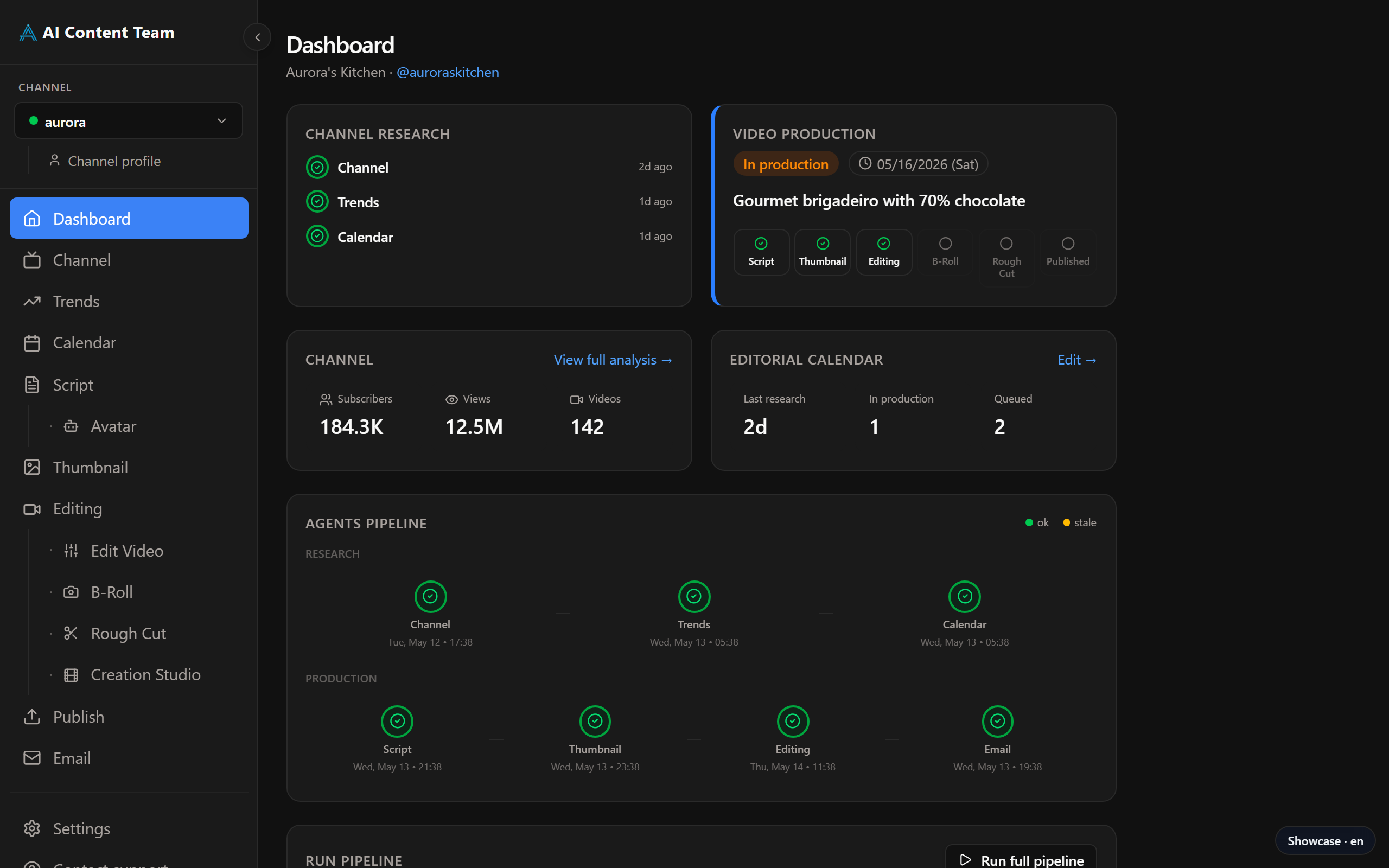
Dashboard — pipeline overview, channel status and video in production
Available pages
| Page | Phase | Function |
|---|---|---|
| Dashboard | — | Overview, pipeline status, full pipeline execution |
| Channel | Research | Channel metrics and AI-generated strategic analysis |
| Trends | Research | Emerging topics for the niche |
| Calendar | Research | Editorial calendar of videos |
| Channel Profile | Research | Editorial identity (niche, audience, tone) used by every AI agent |
| Script | Production | AI-generated script with teleprompter |
| Avatar | Production | Presenter video with a digital avatar (HeyGen) |
| Thumbnail | Production | AI-generated visual concepts |
| Editing | Production | Editing guide with shot list, B-roll and captions |
| B-Roll | Production | Search and manage supporting footage |
| Rough Cut | Production | Auto-generated timeline exportable to Premiere/DaVinci |
| Studio new | Production | In-app HyperFrames editor: chat with the LLM and preview compositions before rendering |
| Edit Video new | Production | Automatically trims raw footage based on the transcript (silences, false starts, retakes) |
| Publish | Production | Upload and schedule on YouTube (with a Library of published videos) |
| Report | Weekly digest sent by email | |
| Settings | — | API keys, appearance, language, licence and updates |
2. Licence and Free Trial
2. Pricing
AI Content Team offers a 7-day free trial, no credit card required. After the trial ends, you must activate a licence to keep using the app.
2.1 Start the free trial
- Open the app for the first time — the licence screen appears automatically
- Click "Try free for 7 days"
- The app unlocks immediately, no signup required
2.2 Activate a licence
- Open the licence screen (automatically when the trial expires, or via Settings → Licence)
- Click "I already have a licence"
- Paste the licence key you received by email after the purchase
- The machine name is filled in automatically — you can change it
- Click "Activate licence"
2.3 Purchase a licence
Click "Buy now" on the licence screen. You are redirected to checkout. The licence key is emailed after payment.
2.4 Licence status
The current status (active, trial, expired) is shown in Settings → Licence, where you can also deactivate the licence to transfer it to another machine.
AI Content Team is currently free for everyone. There is no licence to buy and no trial to start — download the app and use every feature in this manual right away.
If the project is useful to you and you'd like to support its development, you can buy me a coffee — it's entirely optional and doesn't unlock anything extra.
3. Getting Started
After activating the trial or the licence, the app shows a 3-step onboarding wizard:
Step 1 — Channel
- Channel name — as it appears on YouTube
- Handle — the channel @handle (e.g.
@mychannel) - Channel ID — found in the advanced settings of YouTube Studio
Step 2 — Channel Profile
Defines the editorial identity used by the AI agents to generate content aligned with the channel:
| Field | What to fill in |
|---|---|
| Niche angle | What makes your channel unique within the topic |
| Target audience | Who watches your videos |
| Brand tone | How you communicate (e.g. direct, didactic, humorous) |
| Content pillars | Recurring themes that define the channel |
| Brand voice | Signature expressions and language style |
| Title formulas | Title patterns that work for the channel |
| What to avoid | Topics or approaches that are out of scope |
You can edit this information any time in Settings → Channel Profile.
Step 3 — API keys
External integrations require individual API keys. See the Settings section for the full list and where to get them.
Multiple channels
The app supports multiple channels. Use the channel selector in the sidebar to switch between them. Each channel has its own profile, calendar and production history.
4. Common Interface Elements
Video selector
Displayed at the top of Production pages. Selects which video from the calendar is in focus. The selected video determines which script, thumbnail and other assets are shown and edited.
Execution history
The "History" button at the top-right of every page opens a side panel with all previous agent runs — date, duration and result. You can review and restore previous outputs.
Real-time progress
When you run an agent, the output streams line by line in the result panel. You can follow processing without waiting for completion.
Confirmations and notifications
Destructive actions (delete, clear history) show a confirmation dialog. Action results (save, send, generate) show toasts — temporary notifications in the corner of the screen.
Missing-key alerts
If a page requires an API key that is not configured, a banner appears at the top with the key name and a direct link to the relevant section in Settings.
5. Research Phase
The research phase feeds the editorial calendar with real data from the channel and the market.
5.1 Channel
Shows the channel's current metrics (subscribers, total views, published videos, analysed videos) and generates a full strategic analysis based on the latest published videos.
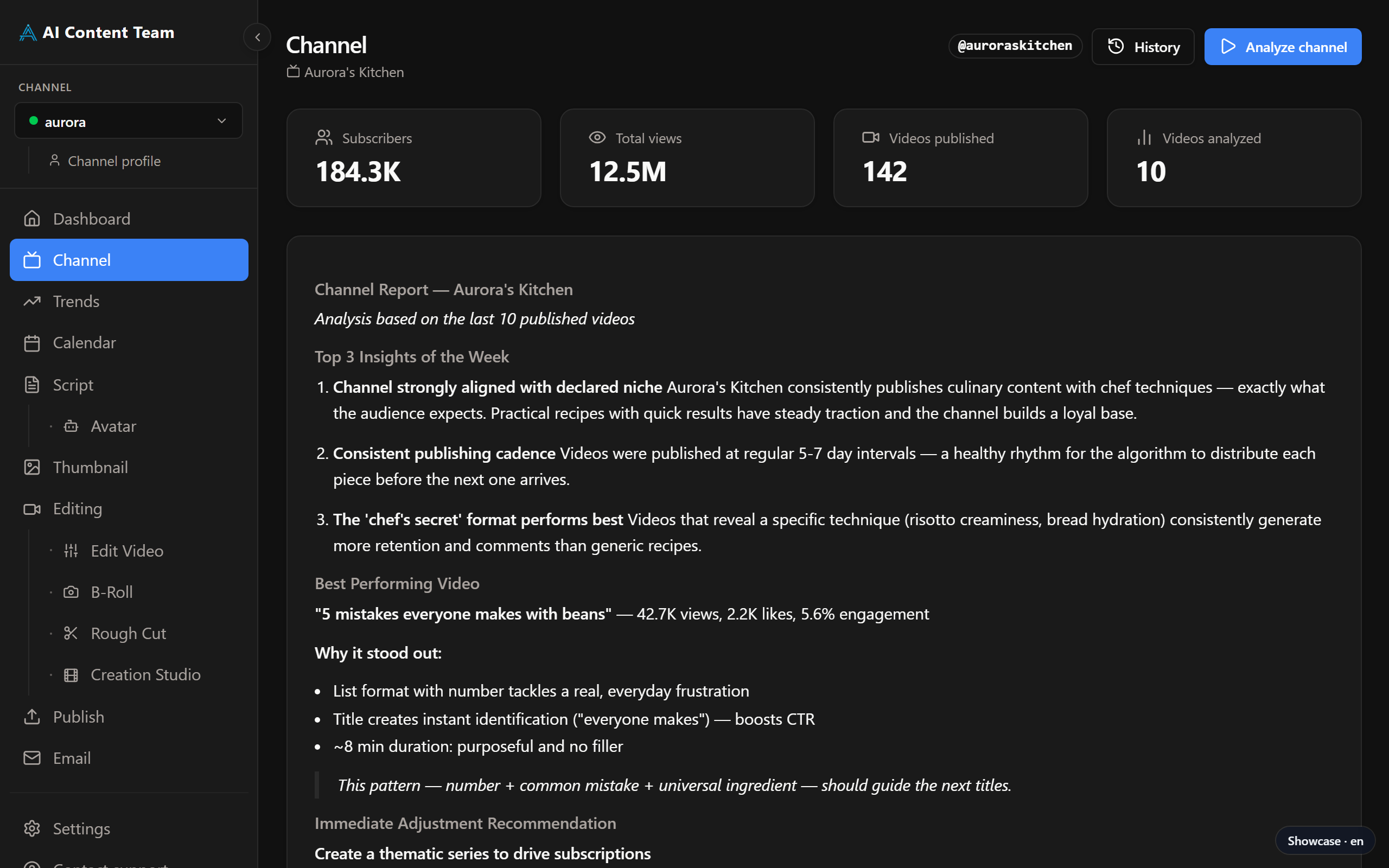
Channel page — metrics and AI-generated strategic report
How to use
- Click "Analyse channel" to generate a new report
- The AI analyses the latest videos: performance, positioning, growth opportunities
- The report is saved and can be reviewed via History
Requires: YOUTUBE_API_KEY
5.2 Trends
Identifies trending topics inside the channel's niche and classifies them by urgency (High, Medium, Low). You can approve, reject or postpone trends from the calendar.
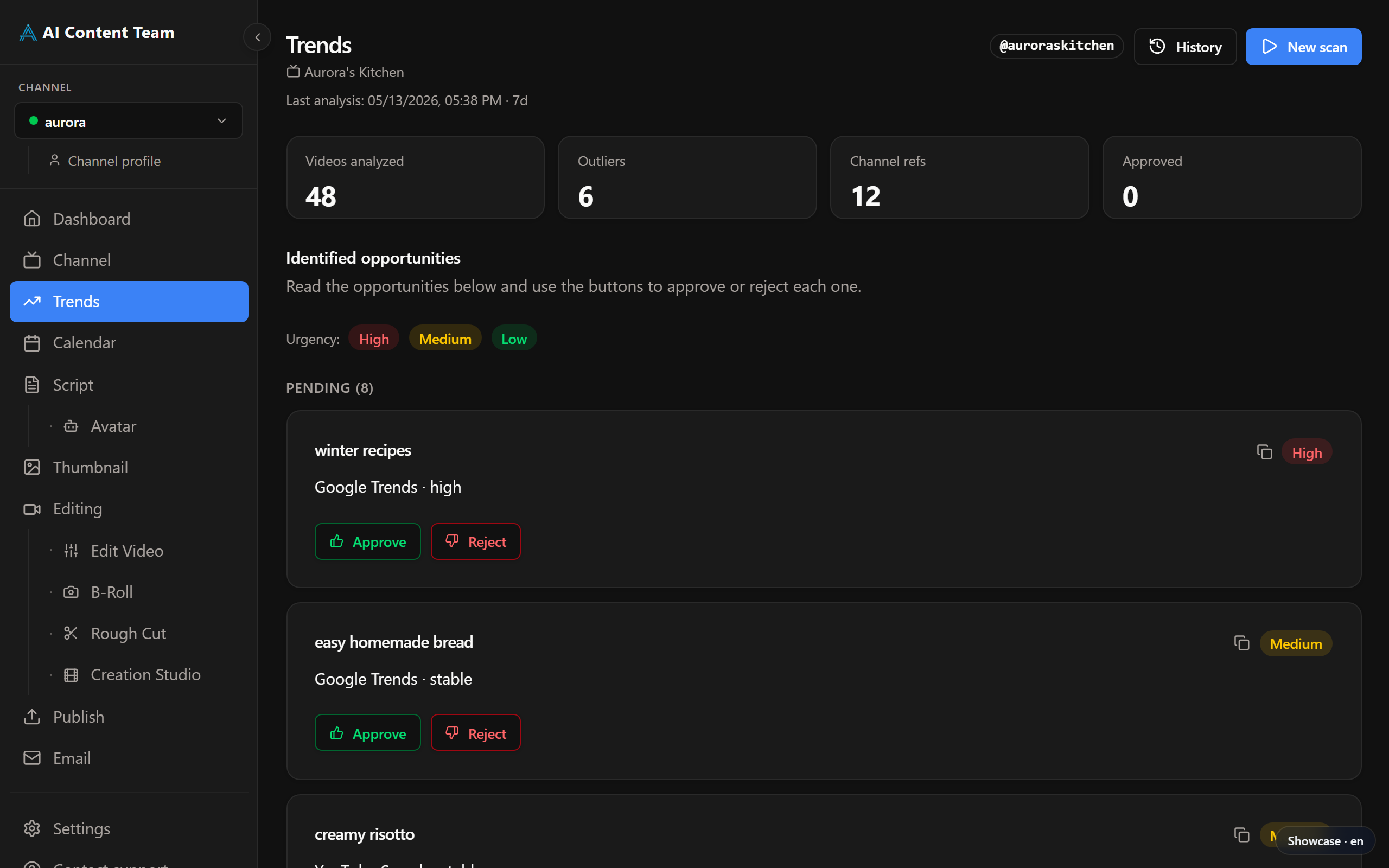
Trends page — topics identified with urgency and action
Sections of the page
- Approved — trends that will enter the calendar
- Pending — awaiting review (Approve / Reject)
- Rejected — dismissed, can be reviewed later
- Outliers — atypical viral videos in the niche, useful as reference
Requires: YOUTUBE_API_KEY
5.3 Calendar
Visual editorial calendar where approved videos are scheduled. Shows every item with date, status and current production phase.
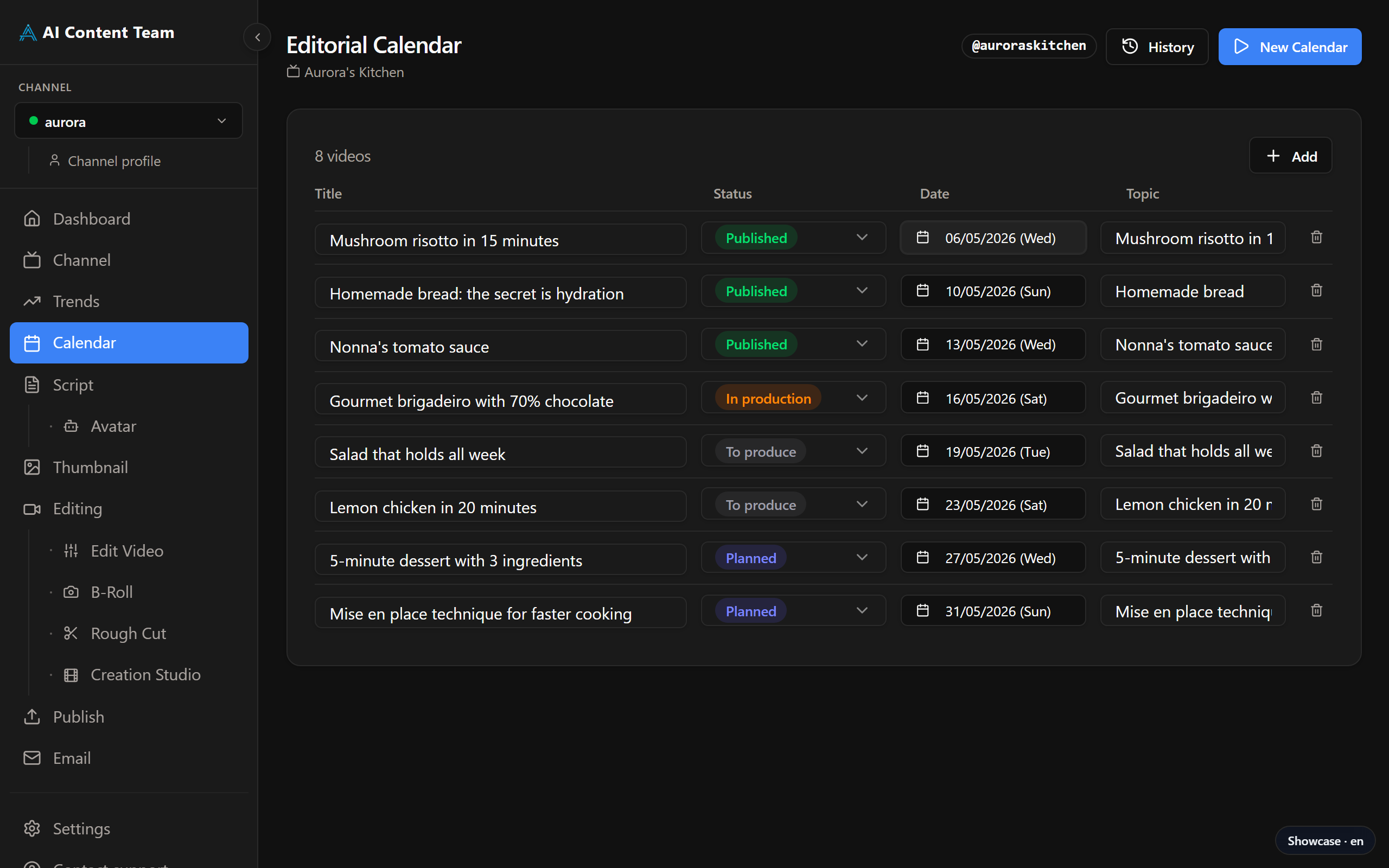
Calendar page — editorial grid with planned and in-progress videos
Available actions
- Create a new item manually
- Change the planned publish date
- Sync with Google Sheets (requires
GOOGLE_SHEETS_ID) - Jump directly to the production page of each video
5.4 Channel Profile
The Channel Profile is the editorial identity that every AI agent reads from to keep scripts, thumbnails, trends and emails aligned with the channel's voice. Initially populated by the 3-step onboarding (see Getting Started), it can be edited any time.
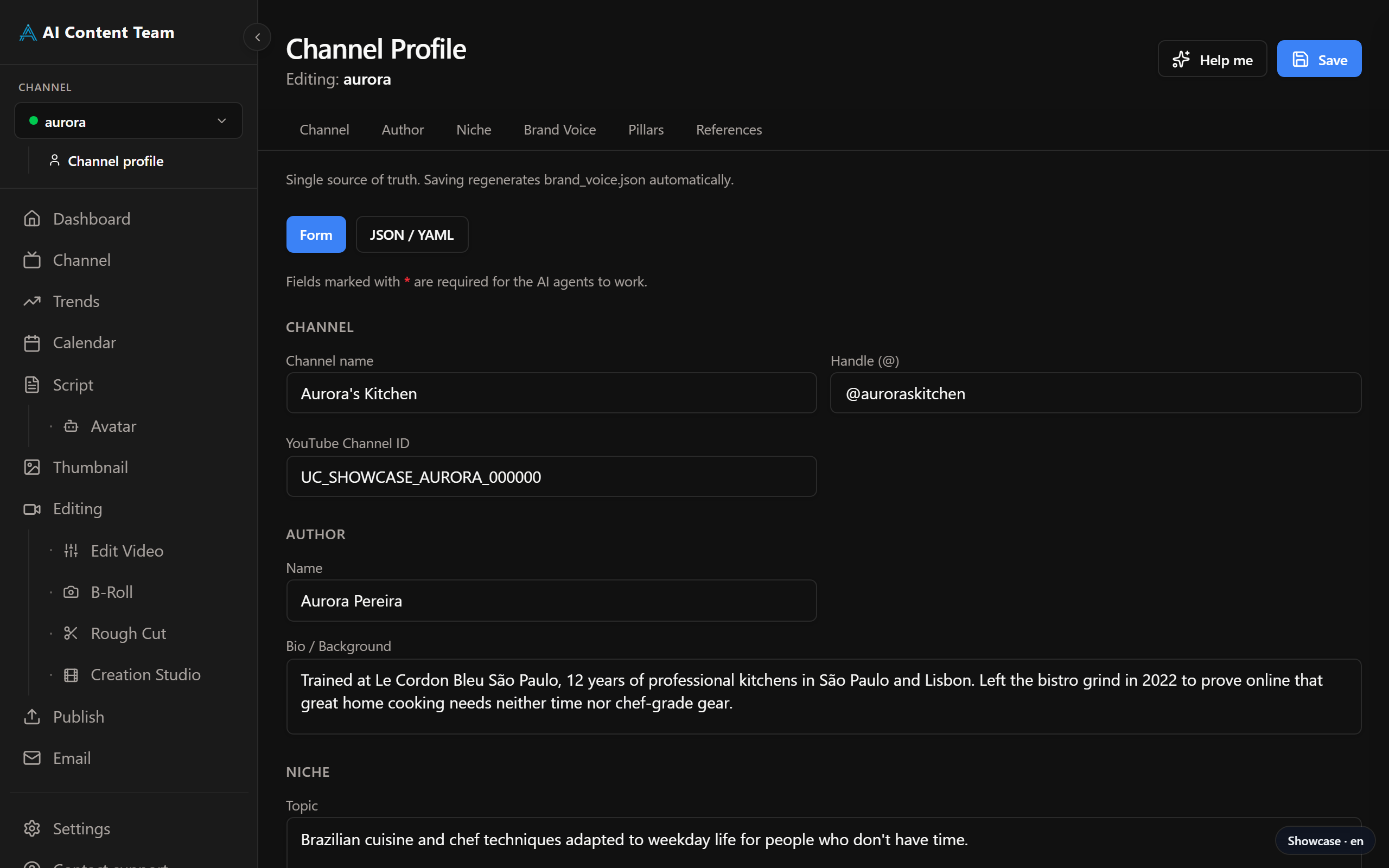
Channel Profile — editorial identity fields driving the AI agents
Where to edit
- Dedicated page:
/perfil(Channel Profile). - Or from Settings → Channel Profile.
What's in it
Same fields as the onboarding Step 2: niche angle, target audience, brand tone, content pillars, brand voice, title formulas, and what to avoid. Changes here flow into every subsequent agent run — re-running Script or Thumbnail after editing the profile will reflect the new tone.
6. Production Phase
The production phase covers everything between the planned video and the file ready for publishing. Use the video selector at the top of each page to make sure you are working on the right video.
6.1 Script
Generates the full video script organised in sections (Hook, Context, Body, CTA…). Each section includes a timecode hint, camera direction and spoken text.
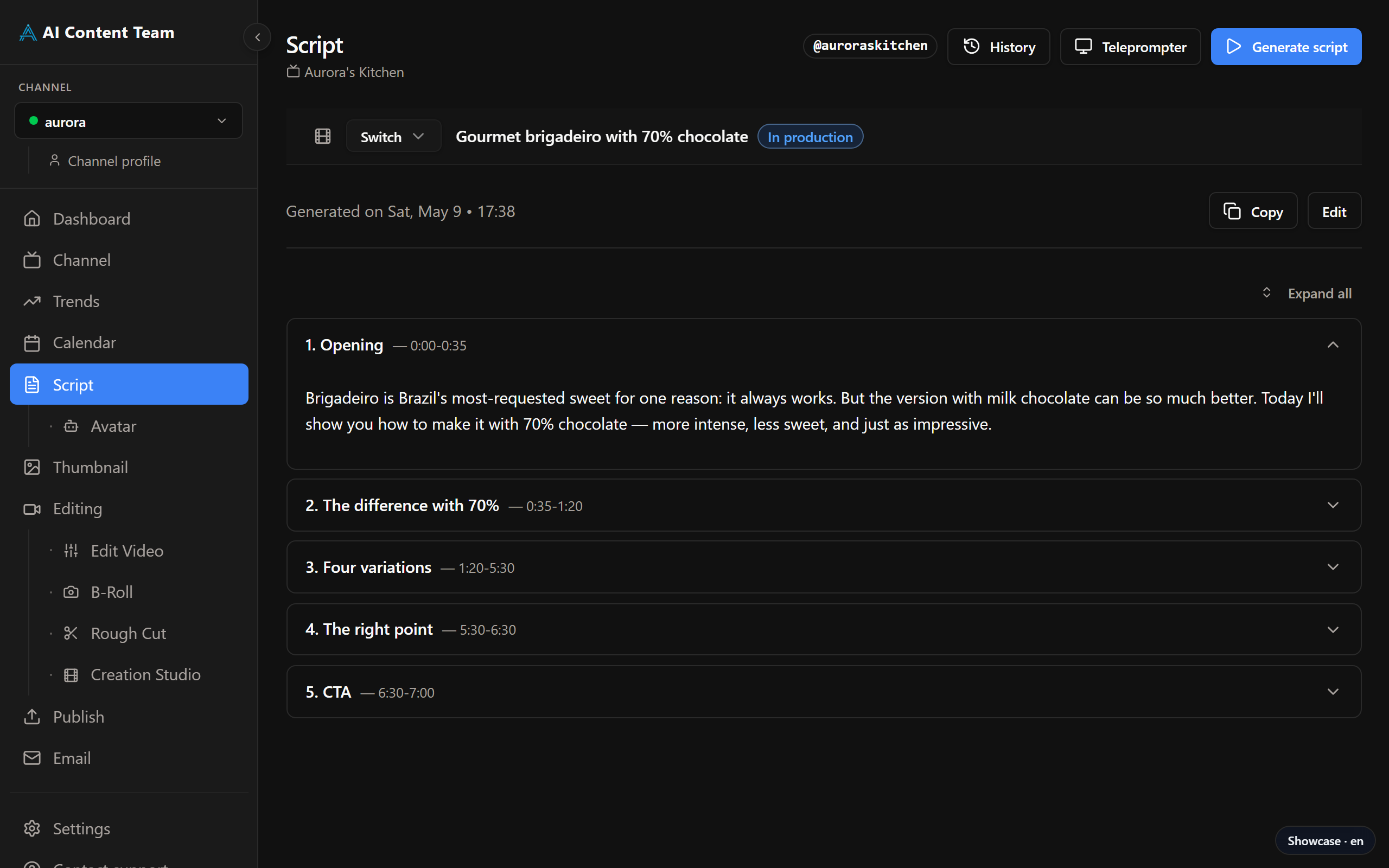
Script page — script broken down by section with timecodes and directions
How to use
- Pick the video in the selector at the top
- Click "Generate script"
- Wait for the generation (streamed in real time)
- Expand and edit the sections as needed
- Click "Copy" to copy the entire script
Teleprompter
Click "Teleprompter" to open the presentation view: large text, controllable auto-scroll, adjustable speed, font size and visible lines.
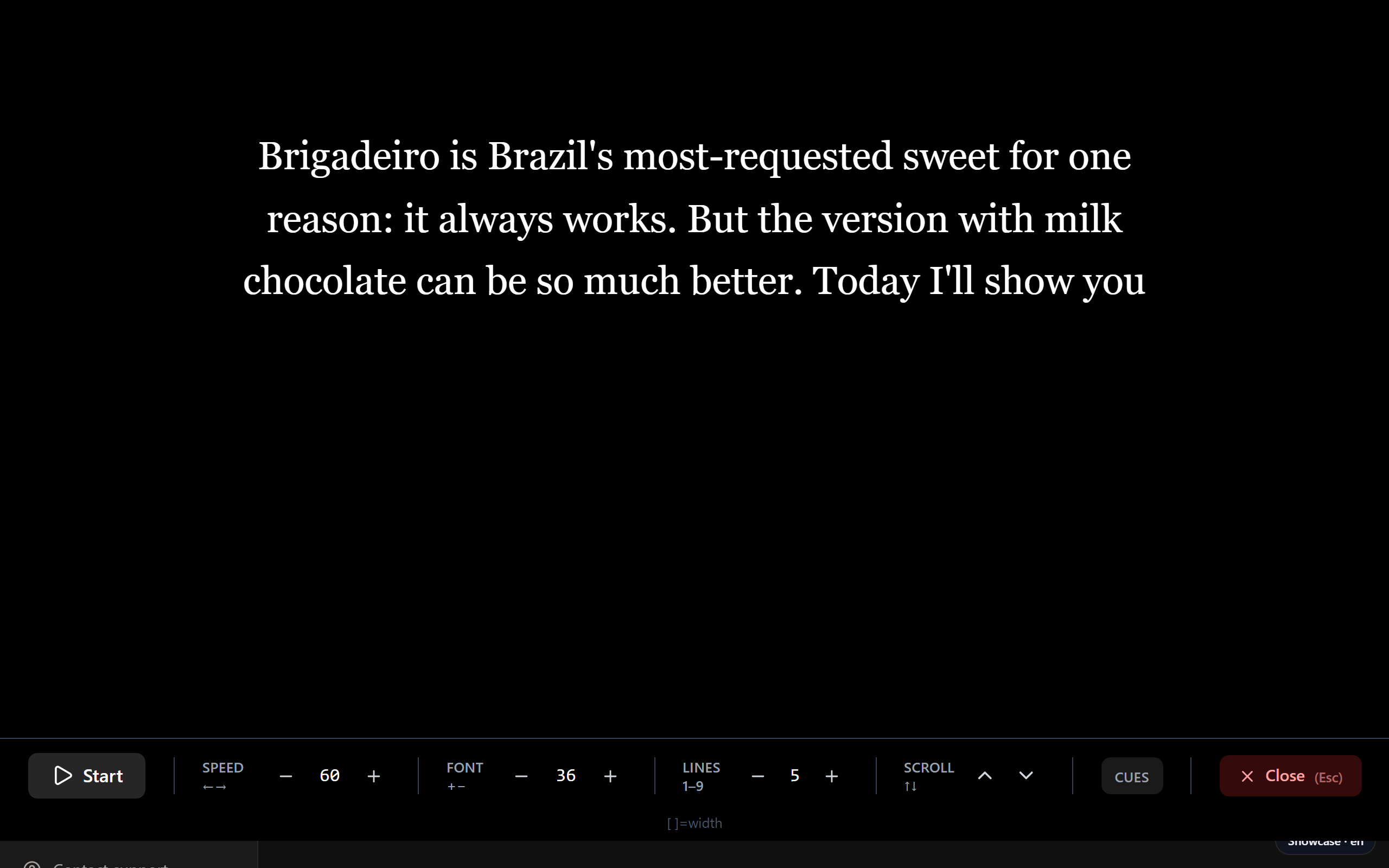
Teleprompter mode — text with auto-scroll for recording
Requires: ANTHROPIC_API_KEY
6.2 Avatar new
Generates a presenter video with a digital avatar lip-synced to the script using HeyGen. The result can be used as main footage in the Rough Cut.
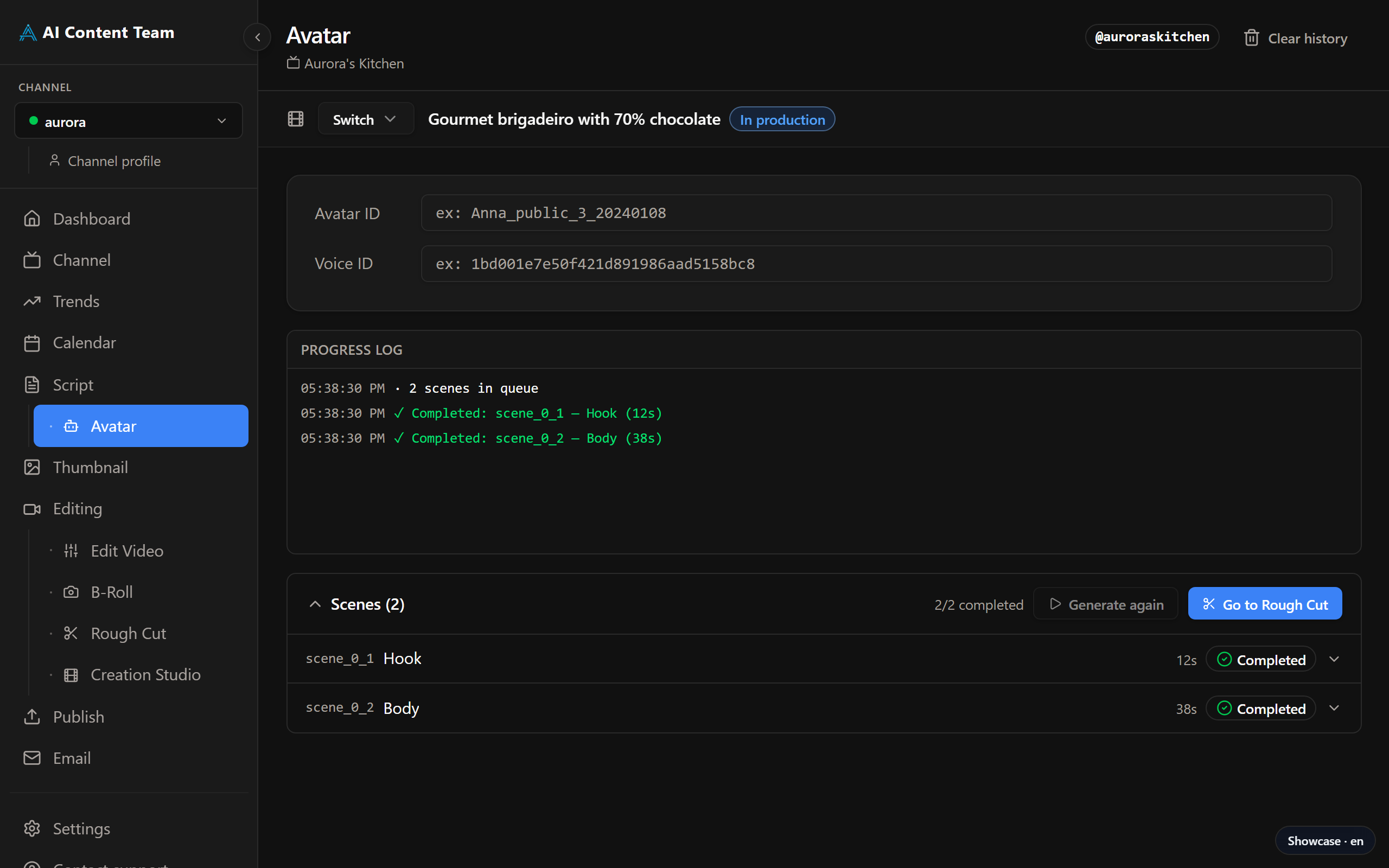
Avatar page — configuration and generation of the digital-avatar video
How to use
- Configure
HEYGEN_API_KEY,HEYGEN_AVATAR_IDandHEYGEN_VOICE_IDin Settings - Open the Avatar page with the video selected
- The script text is extracted automatically
- Click "Generate Avatar"
- Track progress — generation takes a few minutes
- Download the video when it's done via the download button
Requires: HEYGEN_API_KEY, HEYGEN_AVATAR_ID, HEYGEN_VOICE_ID
6.3 Thumbnail
Generates thumbnail visual concepts with AI (Gemini). Presents multiple options to pick from and lets you set the official thumbnail of the video.
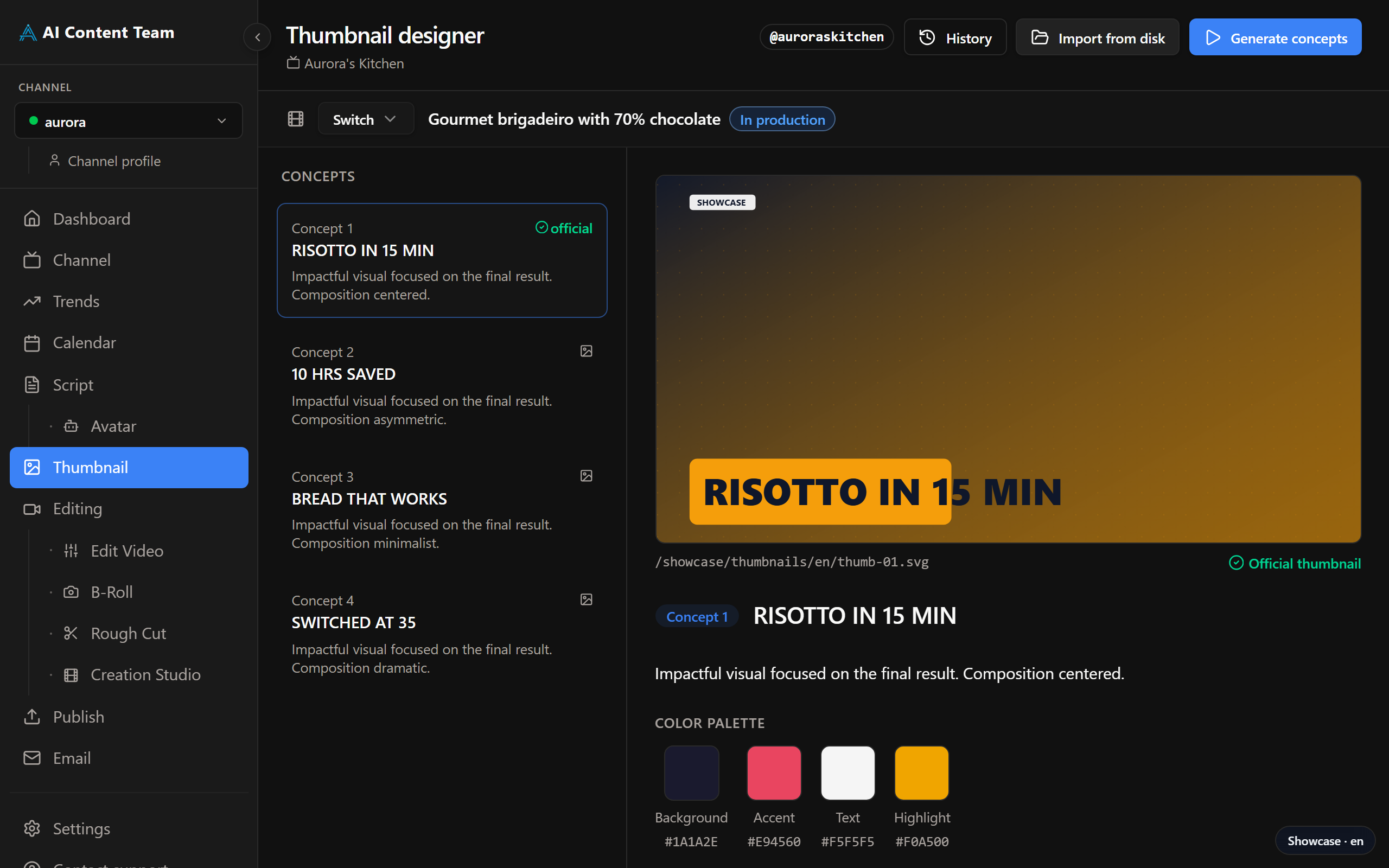
Thumbnail page — AI-generated concepts to choose from
How to use
- Click "Generate thumbnails"
- The AI generates 3+ concepts based on the script and channel profile
- Preview each concept and pick your favourite
- Click "Set as official" to record the choice
Requires: GEMINI_API_KEY
6.4 Editing
Generates a detailed editing guide with shot list, B-roll suggestions, captions and soundtrack, based on the script. The video editor uses this guide as a reference when assembling the video.
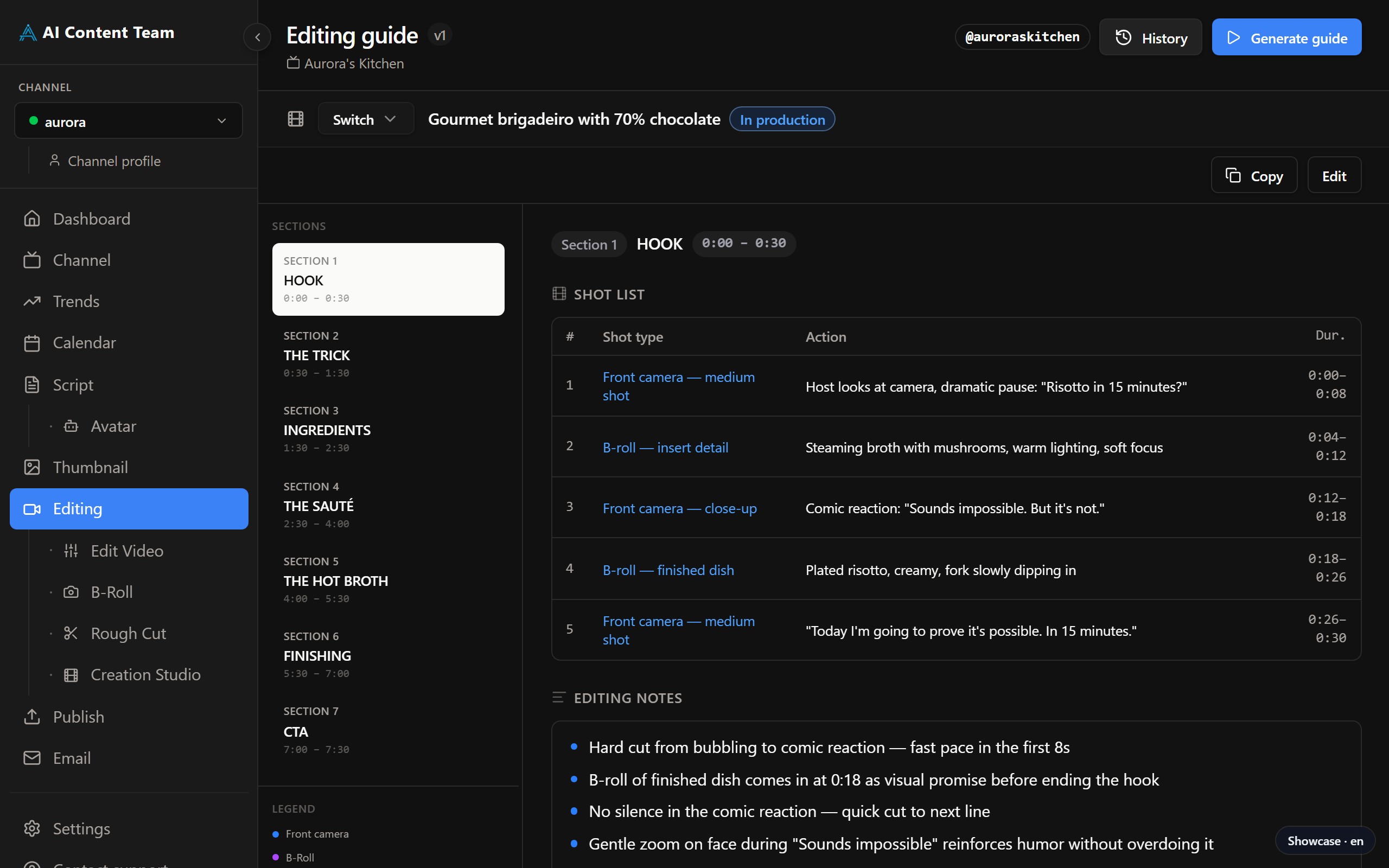
Editing page — full guide with shot list and assembly instructions
What's in the editing guide
| Section | Content |
|---|---|
| Shot List | Table with number, shot type, action and duration of each shot |
| Notes | General notes about rhythm, transitions and style |
| B-Roll | Suggested supporting footage per section |
| Captions | Caption breakdown: moment, text and style |
| Soundtrack | Music and sound-effect recommendations |
Requires: ANTHROPIC_API_KEY
6.5 B-Roll
Searches and manages supporting footage (B-roll) from multiple sources: Pexels stock library, AI generation via Runway and manual uploads.
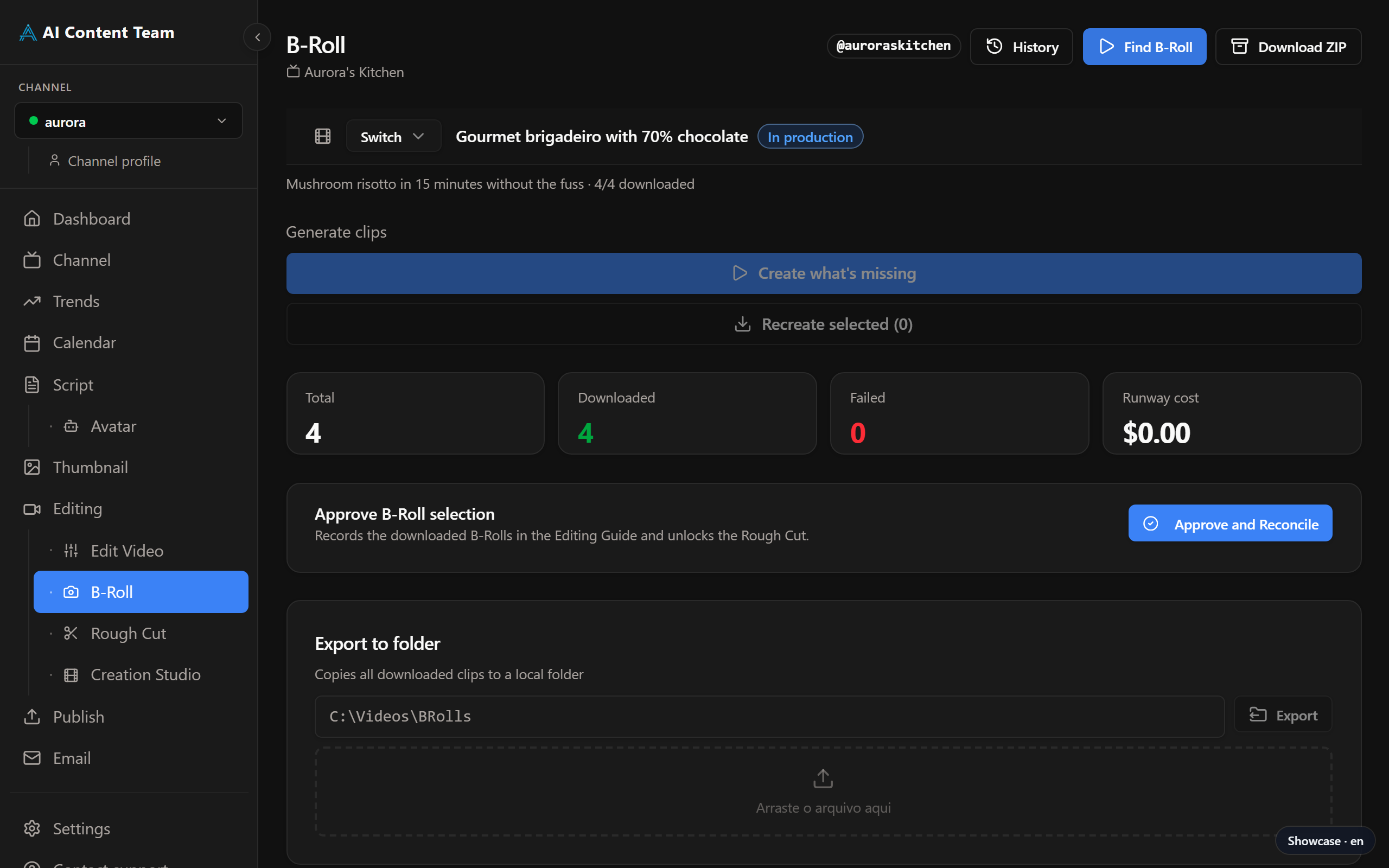
B-Roll page — clip manifest with download status and cost
B-Roll sources
- Pexels — free stock footage, keyword search
- Runway ML — AI video generation (paid per generated second)
- Manual upload — add your own clips
Available actions
- Download clips individually or as a ZIP
- See the estimated cost per source
- Delete unneeded clips
Requires: PEXELS_API_KEY and/or RUNWAY_API_KEY
6.6 Rough Cut
Automatically generates an editing timeline with timecodes mapped from the script to the main footage. Exports an XML file compatible with Premiere Pro and DaVinci Resolve.
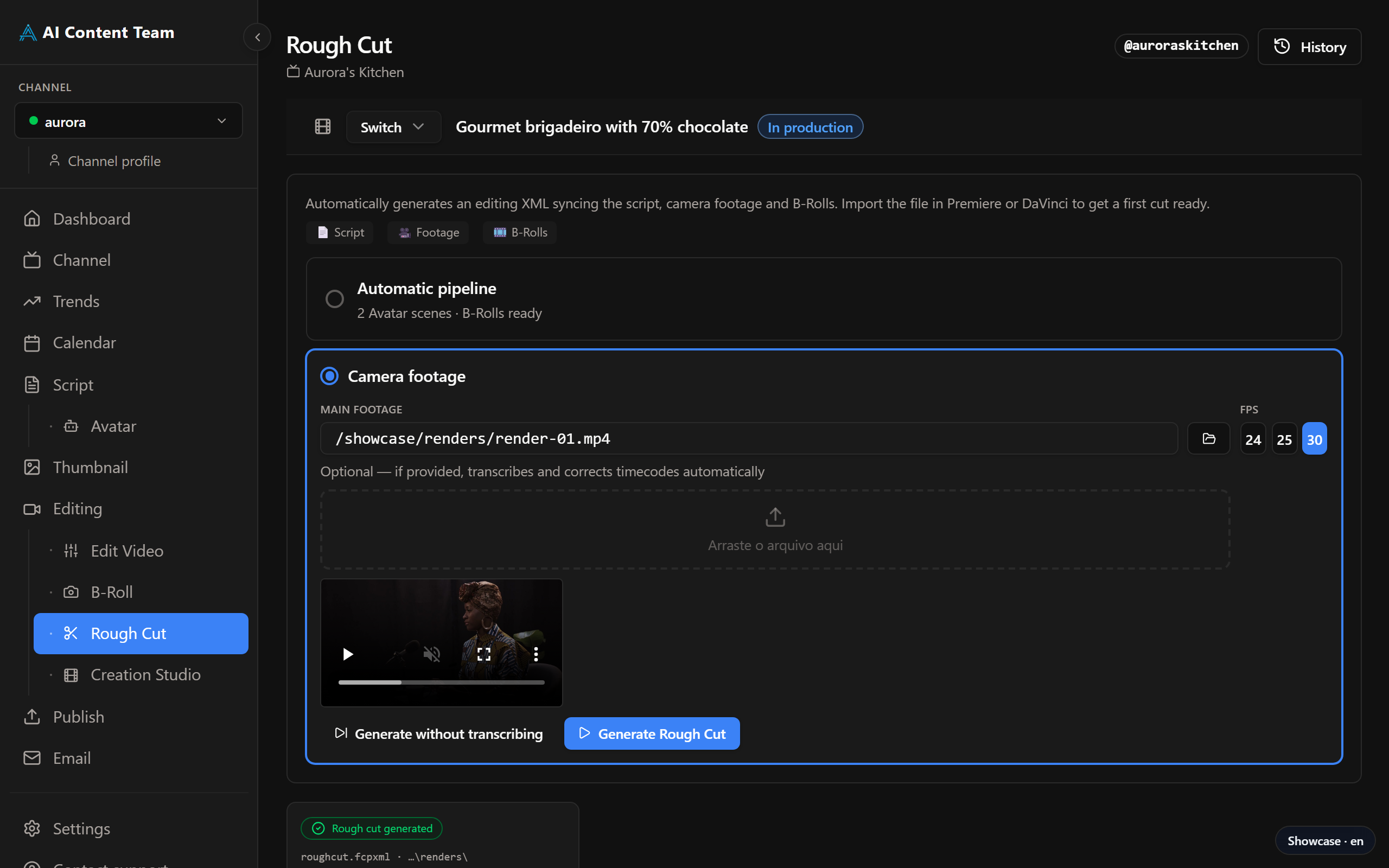
Rough Cut page — timeline with timecodes and XML export
How to use
- Make sure the script and B-roll are ready
- Click "Generate Rough Cut"
- The system maps the script timecodes to the footage
- Review the timeline and tweak manually if needed
- Export the XML for Premiere Pro or DaVinci Resolve
6.7 Studio new
The Studio is the in-app HyperFrames editor: an LLM-driven chat on the left and a live composition preview on the right. Use it to build the final video without leaving the app — as an alternative to exporting XML to Premiere Pro or DaVinci Resolve.
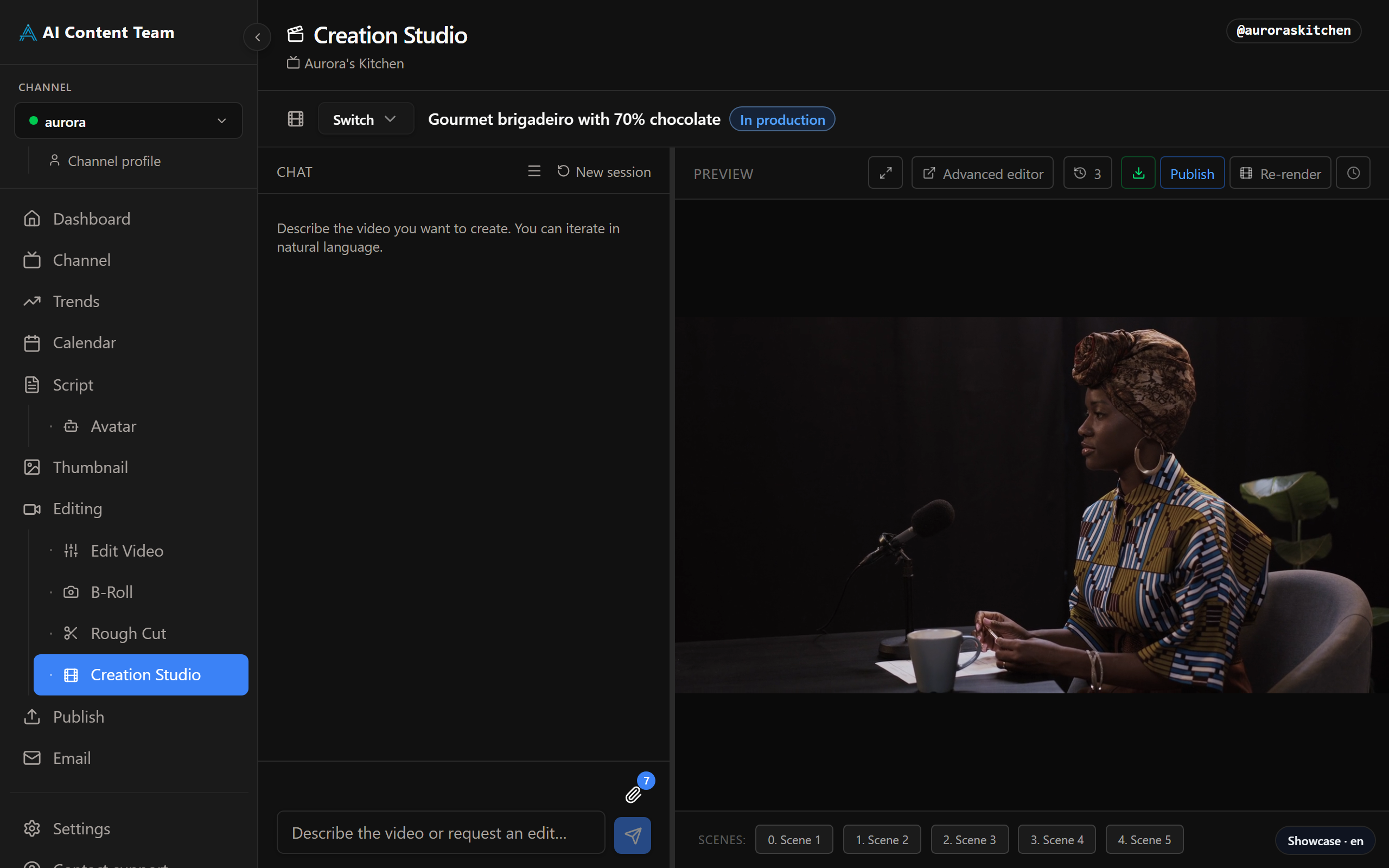
Studio — chat-driven HyperFrames editor with live preview and scene markers
Layout
- Left panel — chat with the LLM. Ask it to add a scene, change a transition, swap a B-roll, tweak captions, etc. The panel is resizable; collapse it to give the preview more room.
- Center — the HyperFrames player rendering the current composition. A toolbar above gives quick access to History, Render and Advanced Editor.
- Scenes bar — markers below the player let you jump between scenes by timecode.
How to use
- Pick the video in the selector at the top — the Studio loads the latest composition for it (or starts a blank one)
- Describe changes in the chat: "add a 3-second title card at the start", "swap the B-roll on scene 2 for the lighthouse clip"
- The LLM rewrites the composition HTML; the preview updates in place
- Use the scenes bar to navigate, the History button to revert, and Render when you're satisfied
Advanced Editor
Click "Advanced Editor" to open the full HyperFrames Studio in a separate window — Inspector, Capture and Renders panels included. It opens against a local sidecar that serves the composition you're working on, so any edit there shows up back in the chat preview.
Requires: ANTHROPIC_API_KEY
6.8 Edit Video new
Edit Video auto-trims your raw footage based on its transcript: silences, false starts, retakes and filler words are removed so you get a clean take to feed the Rough Cut. Use it before assembling the timeline.
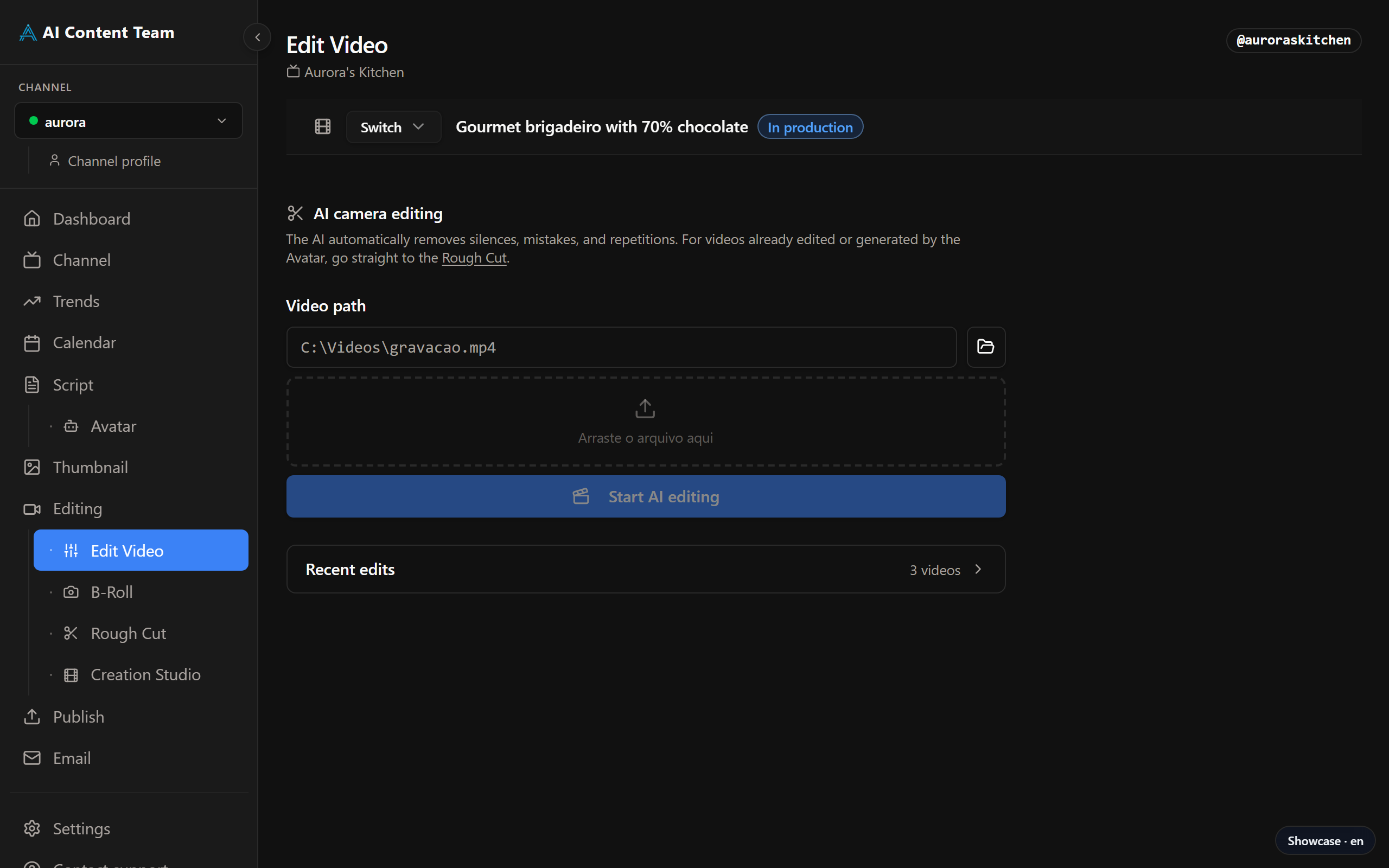
Edit Video — automatic trimming of raw footage from the transcript
How to use
- Click "Pick file" and select the raw footage on disk (or drag-and-drop into the page)
- Click "Edit video" — the agent transcribes the footage and decides where to cut
- Watch progress streamed line by line
- Preview the trimmed result in-page and confirm the path
- The edited file becomes the main footage input for the Rough Cut
Requires: ANTHROPIC_API_KEY (decision-making) and ELEVENLABS_API_KEY (transcription)
6.9 Publish
Prepares the video metadata and uploads directly to YouTube, with optional scheduling. A Library sub-page lists every video you've already published from the app.
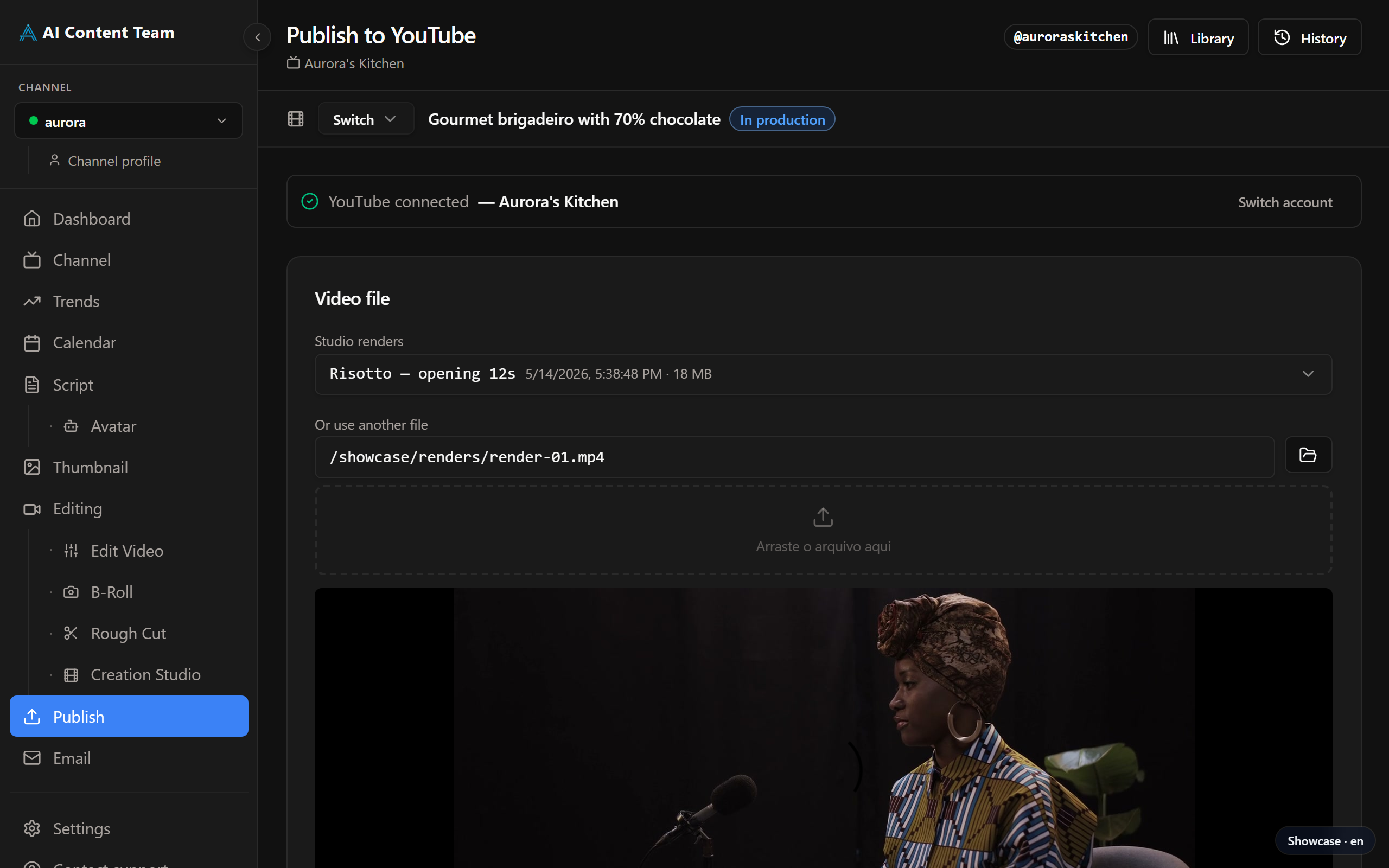
Publish page — metadata and scheduled YouTube upload
How to use
- Select the video file (rendered or external)
- Authorise YouTube via OAuth (first time only)
- Review title, description, tags and chapters — pre-filled from the script
- Tick the AI disclosure boxes where applicable
- Pick: publish now or schedule (minimum 15 minutes in the future)
- Click "Publish" or "Schedule"
Library
Open Publish → Library (route /publicar/biblioteca) to browse every video you have uploaded through the app: title, publish date, YouTube link, scheduling status and quick actions to re-open the original metadata.
Requires: GOOGLE_CLIENT_ID, GOOGLE_CLIENT_SECRET, YOUTUBE_API_KEY
7. Report Phase
7.1 Email
Generates and sends a weekly HTML digest summarising production — published videos, metrics, trends and next steps.
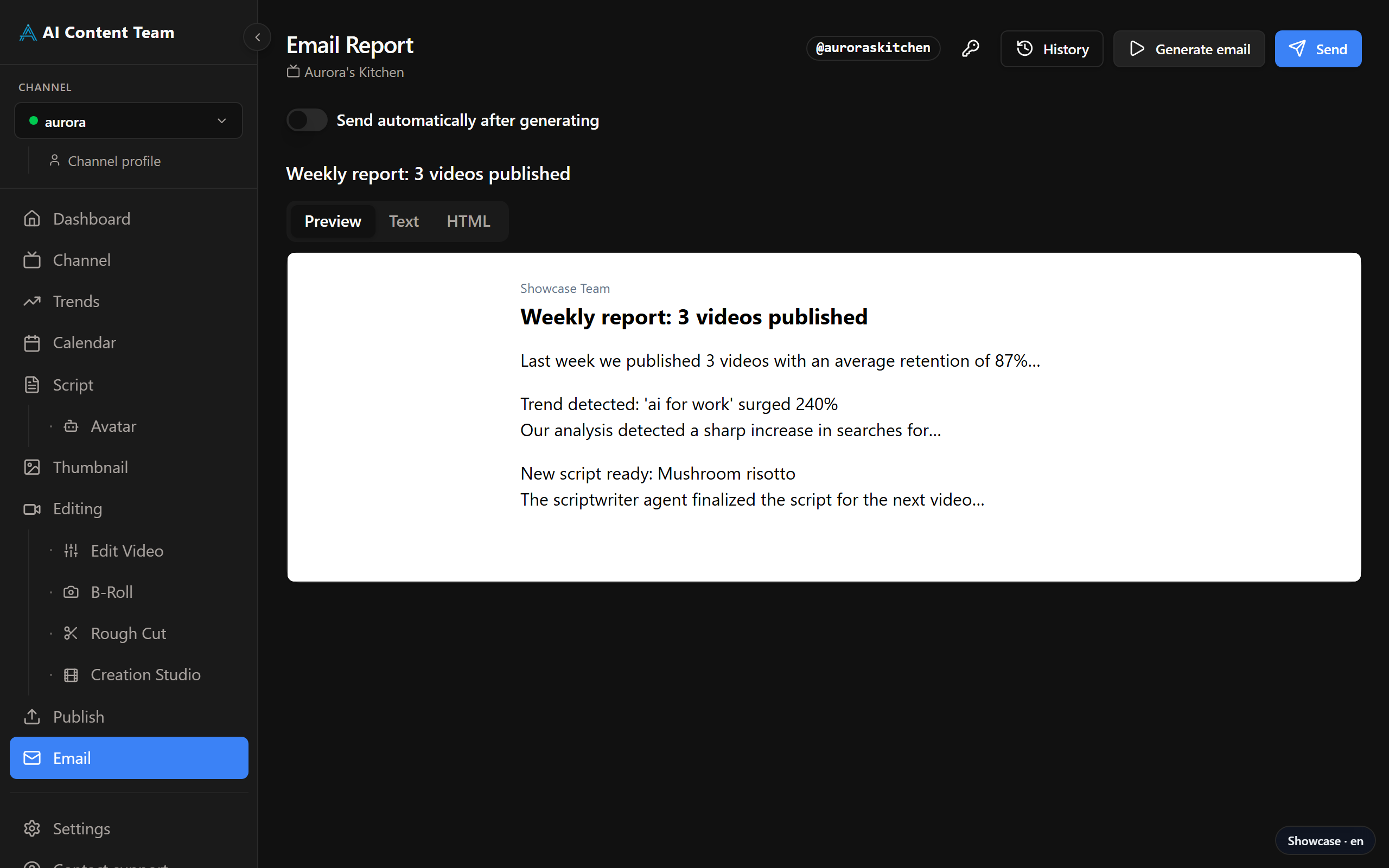
Email page — weekly digest template and Gmail send
How to use
- Click "Generate email" to build the weekly digest
- Review and edit the HTML template if needed
- Authorise Gmail via OAuth (first time only)
- Click "Send"
Requires: GOOGLE_CLIENT_ID, GOOGLE_CLIENT_SECRET, EMAIL_RECIPIENT
8. Settings
Centralises all API keys, visual preferences, execution history, licence status and app updates.
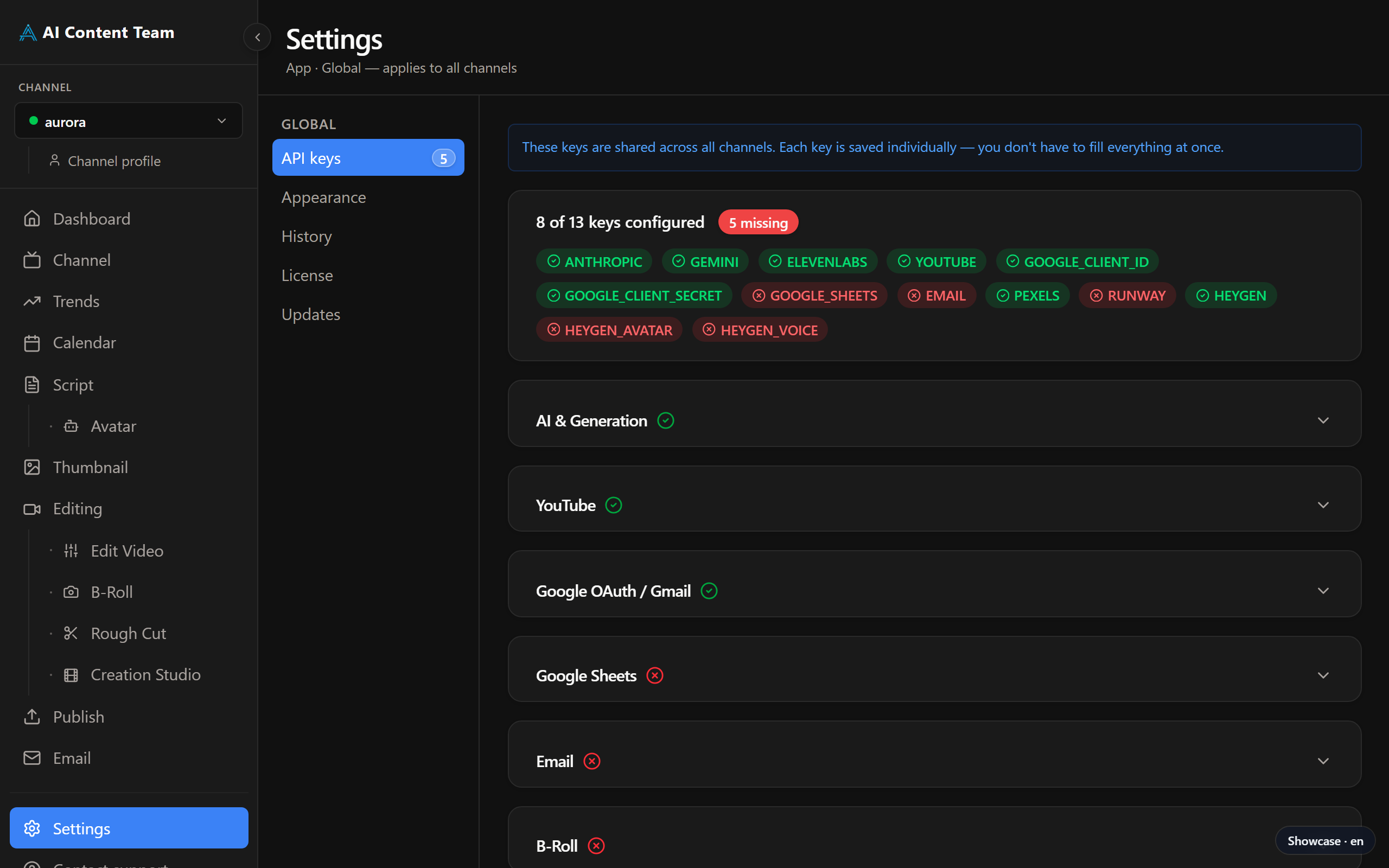
Settings page — API keys and management tabs
8.1 API keys
Every external integration requires individual keys. A progress indicator shows how many keys are configured.
| Service | Keys | What it's used for |
|---|---|---|
| AI & generation | ANTHROPIC_API_KEY, GEMINI_API_KEY | Script, analysis, thumbnails |
| YouTube | YOUTUBE_API_KEY | Channel, trends, publishing |
| Google OAuth | GOOGLE_CLIENT_ID, GOOGLE_CLIENT_SECRET | Gmail, YouTube publishing |
| Google Sheets | GOOGLE_SHEETS_ID | Calendar sync |
EMAIL_RECIPIENT | Weekly digest recipient | |
| B-Roll | PEXELS_API_KEY, RUNWAY_API_KEY | Stock footage and video generation |
| HeyGen | HEYGEN_API_KEY, HEYGEN_AVATAR_ID, HEYGEN_VOICE_ID | Digital-avatar generation |
8.2 Appearance
- Theme: Dark / Light / System
- Font size: Small / Medium / Large / Extra Large
8.3 Language
Switch the interface language between English, Português (Brasil) and Español. The choice is saved per profile and takes effect immediately.
8.4 Channel Profile
Shortcut to the editorial profile of the active channel (also accessible via 5.4 Channel Profile). Edit niche angle, audience, brand tone, pillars, voice, title formulas and exclusions. Changes flow into every subsequent agent run.
8.5 History
Lists every agent execution. You can delete individual runs or clear the entire history. The retention limit is configurable.
8.6 Licence
Shows the active licence key (partially hidden), the instance ID and the status (Active / Trial / Inactive). The "Deactivate" button releases the licence so it can be used on another machine.
8.7 Updates
Checks manually for new app versions. When an update is available, it shows the changelog and an install button. The app can also update itself automatically in the background.
9. Support new
AI Content Team includes built-in live-chat support accessible directly inside the app.
How to open support
- Click "Contact support" at the bottom of the left sidebar
- In the window that opens, fill in your name and email (saved automatically for next sessions)
- Live chat opens automatically
Data sent automatically
To speed up support, the following is sent automatically:
- Installed app version
- Operating system (Windows / macOS / Linux)
- Licence status (active, trial, inactive)
10. Full Workflow
Typical weekly production cycle using AI Content Team:
Monday — Research
- Run Channel — refresh metrics and strategic analysis
- Run Trends — identify trending topics
- Approve the relevant trends
- Run Calendar — spread approved videos across dates
Tuesday to Thursday — Production
- Pick the video of the week in the video selector
- Run Script — generate and review the script
- Run Avatar — generate the presenter video (optional)
- Run Thumbnail — generate and pick the visual concept
- Run Editing — generate the editing guide
- Run B-Roll — search and download supporting footage
- Record your raw footage, then run Edit Video — auto-trim silences and retakes from the recording
- Run Rough Cut — generate the timeline and export the XML
- Choose one path to finish the video:
- Studio — assemble and render directly in the app (chat-driven HyperFrames editor)
- External editor — open the XML in Premiere Pro / DaVinci and use the editing guide
Friday — Publish and Report
- Run Publish — upload and schedule on YouTube
- Run Email — generate and send the weekly digest
Pipeline execution (Dashboard)
The Dashboard offers chained execution modes that run several agents in sequence:
| Mode | Agents executed |
|---|---|
| Research | Channel → Trends → Calendar |
| Produce | Script → Thumbnail → Editing → Email |
| Report | Email only |
| Full | All agents in sequence |
11. Quick Reference by Page
| Page | Main action | Output | Next step |
|---|---|---|---|
| Channel | Analyse channel | Strategic report | Trends |
| Trends | Identify trends | List of approved topics | Calendar |
| Calendar | Schedule videos | Editorial calendar | Script |
| Script | Generate script | Section-based script | Avatar / Thumbnail |
| Avatar | Generate avatar | Presenter video | Thumbnail |
| Thumbnail | Generate thumbnails | Visual concepts | Editing |
| Editing | Generate editing guide | Shot list + instructions | B-Roll |
| B-Roll | Search B-roll | Downloaded clips | Edit Video / Rough Cut |
| Edit Video | Auto-trim raw footage | Cleaned main take | Rough Cut |
| Rough Cut | Generate timeline | XML for video editor | Studio / External editor |
| Studio | Chat-driven assembly + render | Final video file | Publish |
| Publish | YouTube upload | Published/scheduled video | |
| Generate digest | Weekly email sent | — |
Glossary
| Term | Definition |
|---|---|
| Advanced Editor | Full HyperFrames Studio opened from inside the in-app Studio, in a separate window with Inspector, Capture and Renders panels |
| Avatar | Animated digital representation of the presenter, generated via HeyGen with lip-sync to the script audio |
| B-Roll | Secondary footage used during editing to illustrate or complement the main content |
| Editorial calendar | Schedule of videos with publish dates, status and priority |
| API key | Authentication code provided by external services (YouTube, HeyGen, etc.) for integration with the app |
| Digest | Weekly summary of the channel's activity sent by email |
| Execution history | Log of every agent run, with saved outputs and timestamps |
| HyperFrames | HTML-based composition format used by the Studio to describe and render the final video |
| Licence | Activation code that unlocks the full app after the trial period |
| Outlier | Video with atypical performance (well above or below average) used as a reference for analysis |
| Channel Profile | Editorial information used to guide the AI agents: niche, audience, tone, content pillars |
| Rough Cut | First assembly of the video with all the cuts decided, before final polish |
| Scene | Logical section of a HyperFrames composition, navigable via the Studio's scenes bar |
| Studio | In-app HyperFrames editor with chat-driven authoring on the left and a live preview on the right |
| Video selector | Control at the top of Production pages that determines which video is being edited |
| Shot list | Table with the sequence of shots and actions to record or assemble |
| Teleprompter | Script view with auto-scroll, used while recording |
| Timeline | Editing timeline with the sequence of clips and their timecodes |
| Toast | Temporary notification that appears and disappears automatically to confirm an action |
| Trial | 7-day free trial, no credit card required |
| Trend | Topic trending on YouTube inside the channel's niche, identified automatically by the platform |
Version History
| Doc version | Date | App version | Changes |
|---|---|---|---|
| v2.0 | — | — | Original version |
| v2.1 | Apr 2026 | — | Content review and expansion |
| v3.0 | Apr 20, 2026 | 0.2.9 | Added: Licence/Trial, Avatar, live-chat Support; Settings updated with Licence and Updates tabs |
| v4.0 | May 15, 2026 | 0.3.0 | English-only manual; Remotion removed; new sections for Studio, Edit Video, Publish Library and Channel Profile; full audit against current UI |